All integrations

Cursor

Ask Cursor to send a notification - it knows how.

LiveEditorchirp login
progress (primary) Live Activity preview
Cursor session

Cursor reads `.cursorrules` from the project root and prepends it as system context to every conversation. Chirp ships a pre-written rules file that teaches Cursor when Chirp is the right tool (long-running shell command, CI/test run, deploy, training job) and how to call it (the CLI command + the SDK shape + the auth flow).

Once the file's in place, you talk to Cursor in plain English - "send me a push when the build finishes", "notify my phone when these tests pass". The agent picks the right path: if `chirp run` is appropriate it uses the CLI; if you're in Python it imports the SDK; if you're in CI it suggests the GitHub Action. No tool-use API to wire up.

Prerequisites

  • Cursor installed.
  • A Chirp account - `chirp login` on your laptop pairs the CLI with your account.
  • (Optional) Chirp Python/Node SDK installed if your project uses one of those languages - Cursor will auto-add it on first use otherwise.

Setup

  1. 1

    Pair the CLI

    On your laptop: chirp login. Opens a browser, signs you in, drops credentials at ~/.chirp/credentials. Cursor's agent inherits this when it shells out, so no API keys appear in your project files.

    shell
    chirp login
  2. 2

    Drop the rules file at the repo root

    From the project root: curl -o .cursorrules https://chirpapp.dev/agent-skill/cursorrules. The file is plain text, ~80 lines, safe to commit. Includes Chirp's CLI flags, SDK signatures, the schema vocabulary (@deploy, @build, @training, etc.), and a few examples of when *not* to call Chirp.

    shell
    curl -o .cursorrules https://chirpapp.dev/agent-skill/cursorrules
  3. 3

    Talk to Cursor in plain English

    Open the project in Cursor. In the chat or composer: "send me a push when the docker build finishes" → Cursor edits your build script to wrap with chirp run. "notify me with progress through this training run" → Cursor adds the SDK to your script and calls update_progress() at appropriate points.

  4. 4

    (Optional) Per-project schema customization

    If your project always uses one schema (e.g. always @deploy), append a project-specific note to the rules file. Cursor honors local additions over the upstream defaults.

    shell
    # Append to .cursorrules:
    echo "
    ## Project default
    This repo always uses the @deploy schema with stage in {build, test, ship}.
    " >> .cursorrules

What you’ll see

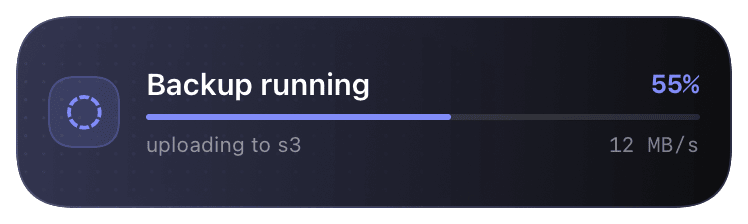
No Live Activity from this integration directly - it's an agent skill, not a runtime. The Live Activities show up because Cursor wires Chirp into your code based on the rules file. The wiring it picks varies: a `chirp run` shell wrap, a Python SDK import, a GitHub Action step, etc. The cards on your phone match whichever path Cursor took.

Troubleshooting

Cursor doesn't seem to know about Chirp.
Confirm .cursorrules is at the repo root (not in a subdirectory) and that Cursor has the project root open. Cursor reads the rules on session start - if you added the file mid-session, restart the chat.
Cursor wires Chirp but the curl command 401s.
chirp login writes ~/.chirp/credentials for the *interactive* user. If Cursor is running in a sandbox or remote SSH context, the credentials may not be visible. Run chirp login --print-token and paste the token into your shell's env (export CHIRP_API_KEY=...).
I want Cursor to use Chirp by default in every project.
Cursor supports global rules at ~/.cursor/rules/. Drop the same file there to apply it across all projects. Per-repo .cursorrules overrides global on conflict.