All integrations

Healthchecks.io

Cron miss / recovery on your lock screen - uniquely solved here.

LiveServicesigned URL
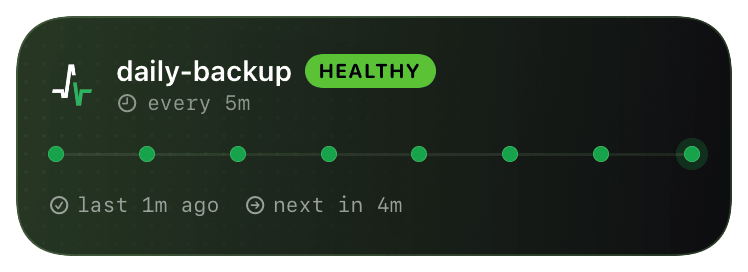
healthchecks (healthy) Live Activity preview
what shows on your phone

Healthchecks.io is the de-facto cron monitor - your jobs ping a URL, Healthchecks fires alerts when a ping is late or missing. Chirp's @healthchecks schema turns those alerts into a Live Activity that *persists* through the down state and updates in place when the check recovers (vs. a normal alert that's just a one-off push notification).

The killer feature is the 8-dot timeline: the activity card shows the last 8 pings as colored dots - green for on-time, yellow for late, red for missed. You see the recent history at a glance from the lock screen, not just "something is broken now." Recovery transitions update the same card to green without a second push.

Prerequisites

  • A Healthchecks.io account (the SaaS, or a self-hosted instance - same API).
  • At least one check configured.
  • A Chirp inspector / webhook URL.

Setup

  1. 1

    Add the Webhook integration to your project

    Healthchecks → your project → Integrations → Add Integration → Webhook. Healthchecks supports per-event URLs (different for down and up), but Chirp accepts both at the same endpoint.

  2. 2

    Paste the Chirp URL for both down and up events

    Use the same URL for both fields - Chirp's normalizer reads the event type from the payload and updates the activity in place. Tick "Send a request when a check goes down" and "...when a check goes up."

    shell
    # URL for both fields:
    https://api.chirpapp.dev/v1/webhooks/healthchecks?key=YOUR_KEY
    
    # (Optional) HTTP method: POST (default).
    # (Optional) Request body: leave blank - Healthchecks sends the
    # default JSON payload which Chirp's normalizer expects.
  3. 3

    Assign the integration to your checks

    Webhook integrations in Healthchecks are project-scoped but per-check assigned - go to each check's settings and tick the new "Webhook" integration in the notifications list. Bulk-assign via the integration's edit page.

  4. 4

    (Optional) Self-hosted Healthchecks

    Same flow on a self-hosted Healthchecks instance. The Chirp inspector accepts the standard payload format; you don't need to configure anything Chirp-side beyond the inspector key.

What you’ll see

Card header: Healthchecks logo + check name + project tag. The 8-dot timeline shows the last 8 pings - green dots for on-time, yellow for late, red for missing. When a check goes down, the card flips to a red "DOWN" state with the time of the last successful ping. When it recovers, the *same* card updates to green with a small "recovered" badge. The card stays around for 30 minutes after recovery, then auto-dismisses.

Troubleshooting

Card never appears even though Healthchecks is sending alerts.
Healthchecks shows webhook delivery status under each integration's settings. If you see HTTP 401/403, the inspector key is wrong. If you see successful 2xx but no card, check that your inspector hasn't been disabled in the Chirp dashboard.
I'm getting both an email and a Chirp alert - too noisy.
Healthchecks lets you toggle integrations per-check. Disable email on the checks where you only want Chirp, or use a separate notification policy for after-hours.
Self-hosted Healthchecks fires but Chirp doesn't normalize the payload correctly.
Confirm your self-hosted version is recent (Healthchecks v2+). The payload format changed between v1 and v2 - Chirp's normalizer expects v2 fields. If you're on v1, upgrade or pass ?legacy=1 on the inspector URL.
Multiple checks fire at once and I get multiple cards.
Each check creates its own card (keyed by check UUID) - that's by design so you can see which is down. To consolidate, use a Healthchecks Project URL instead and route through a generic webhook inspector.
External docs →